
Use casesBatch Image Generator
Bulk Generate Themed AI Sticker and Clipart Sets
Generate eight coordinated sticker illustrations from one written theme. See an autumn planner collection and reuse its palette and outline instructions.
Open this exampleEight stickers for an autumn planner
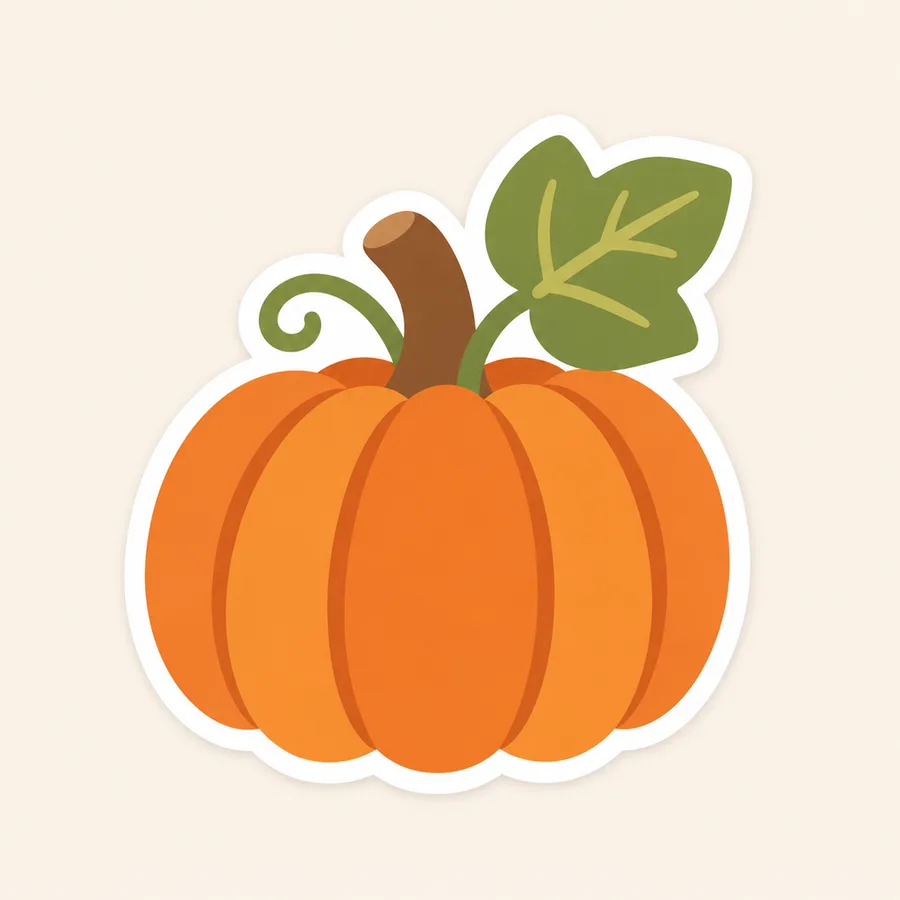
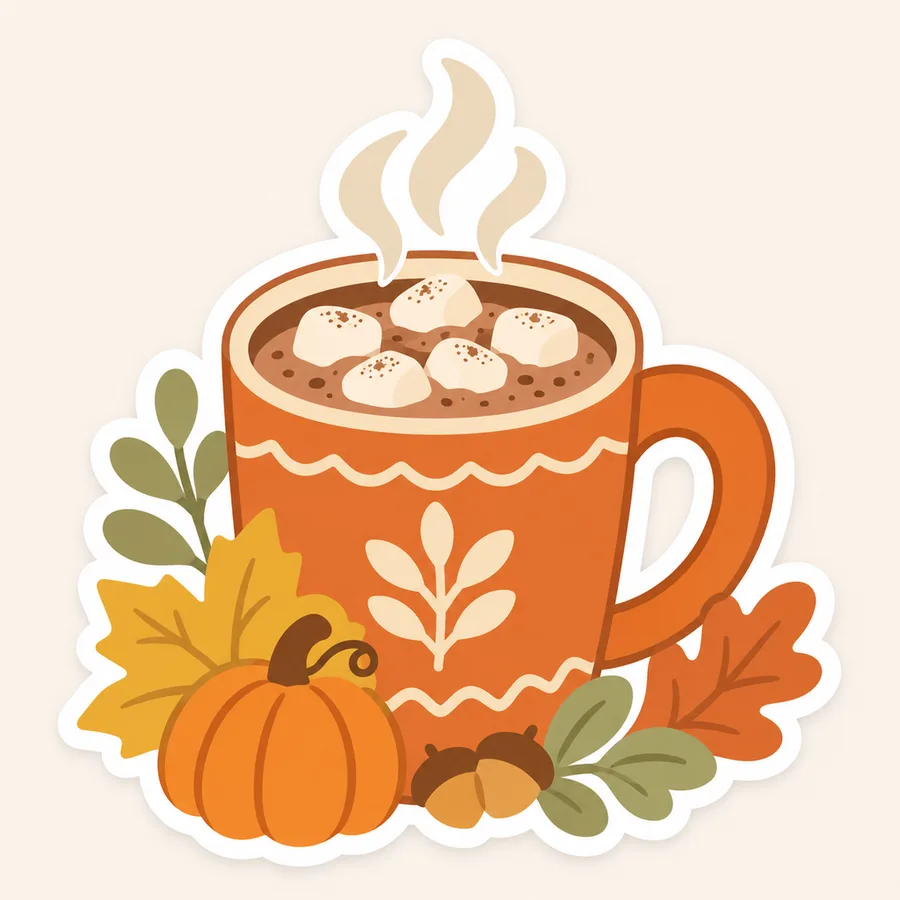
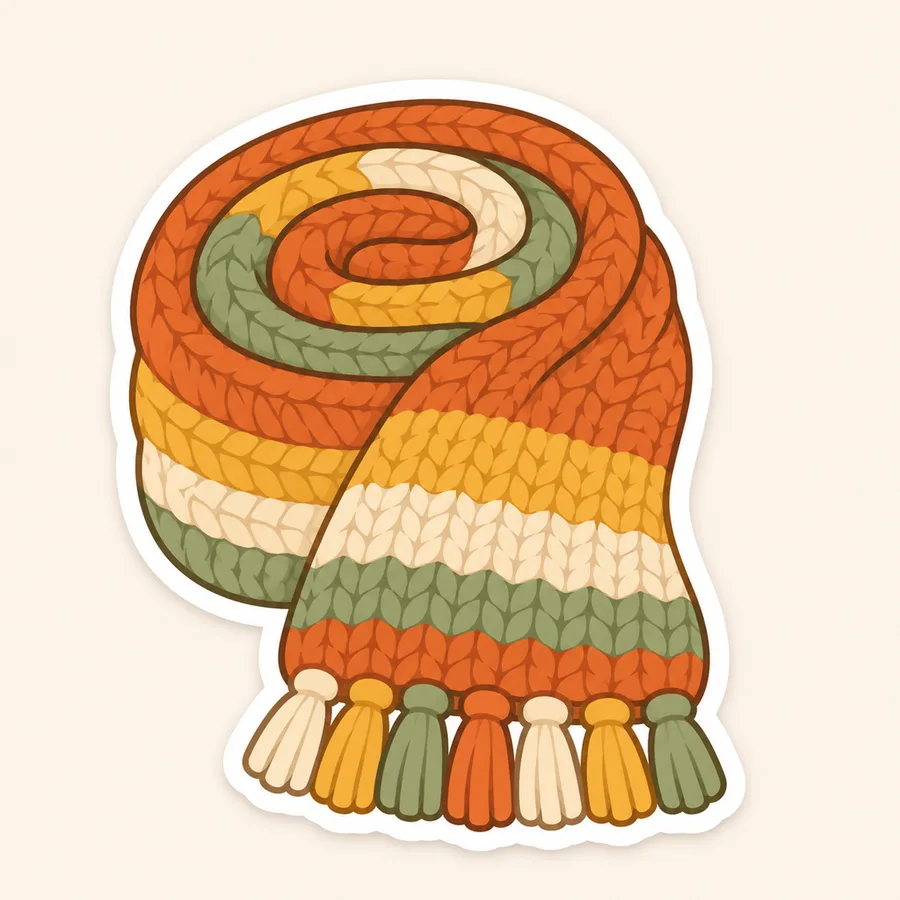
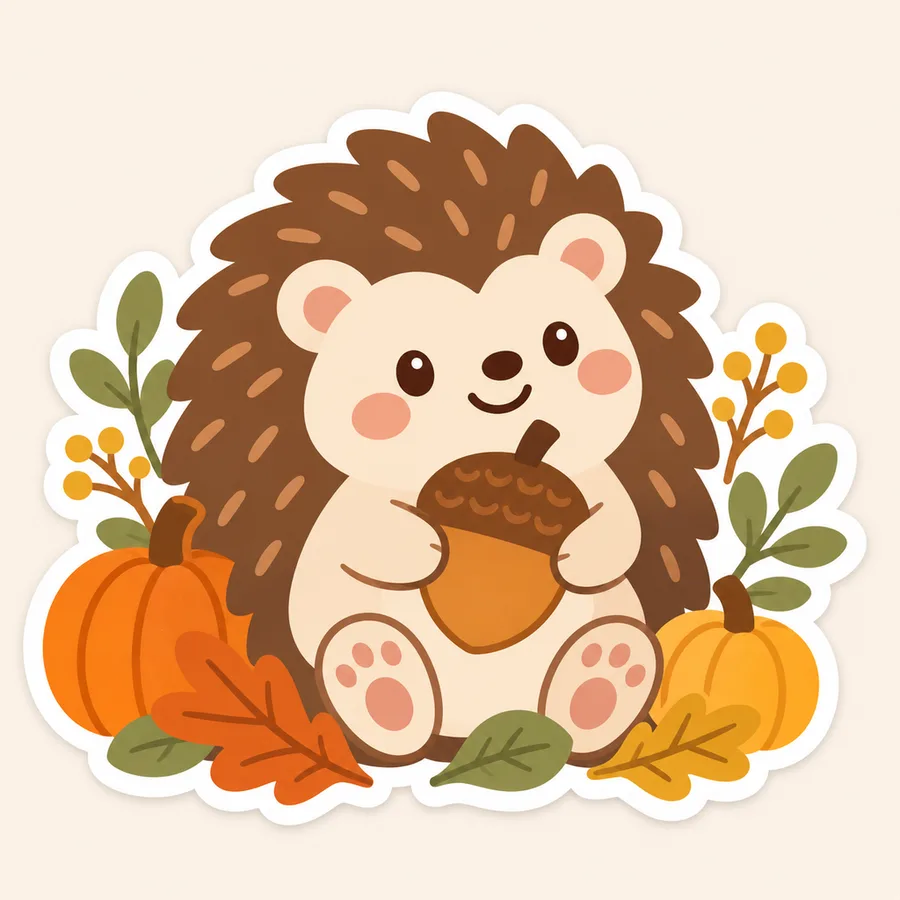

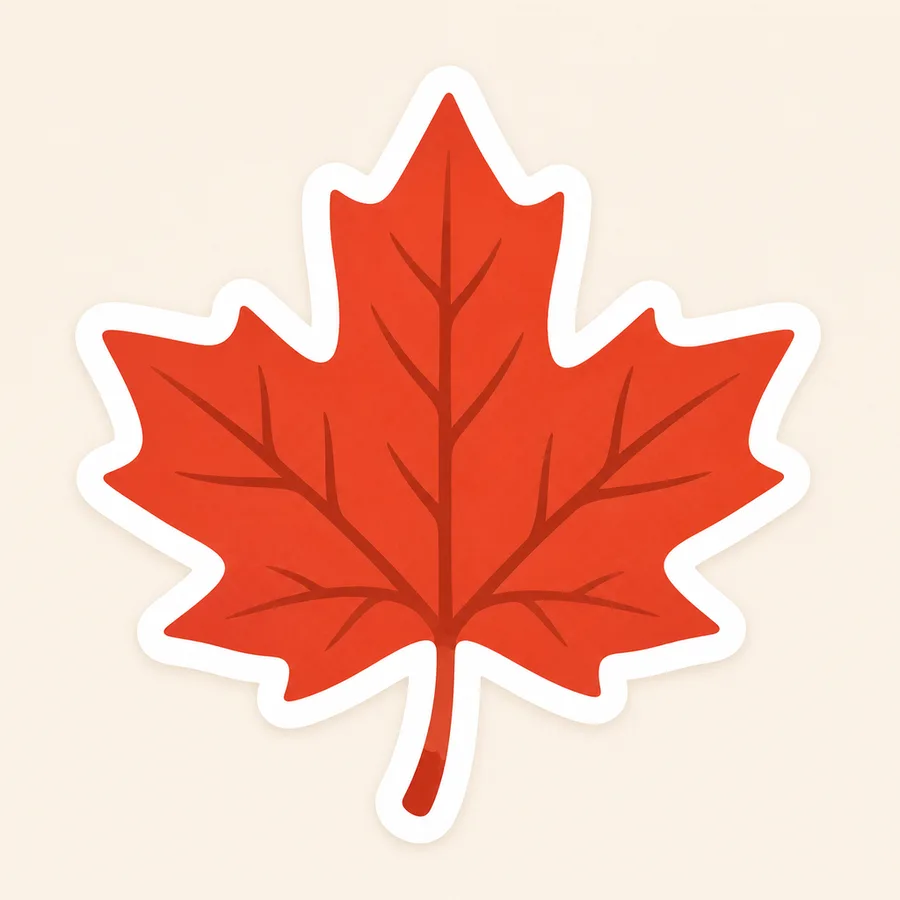
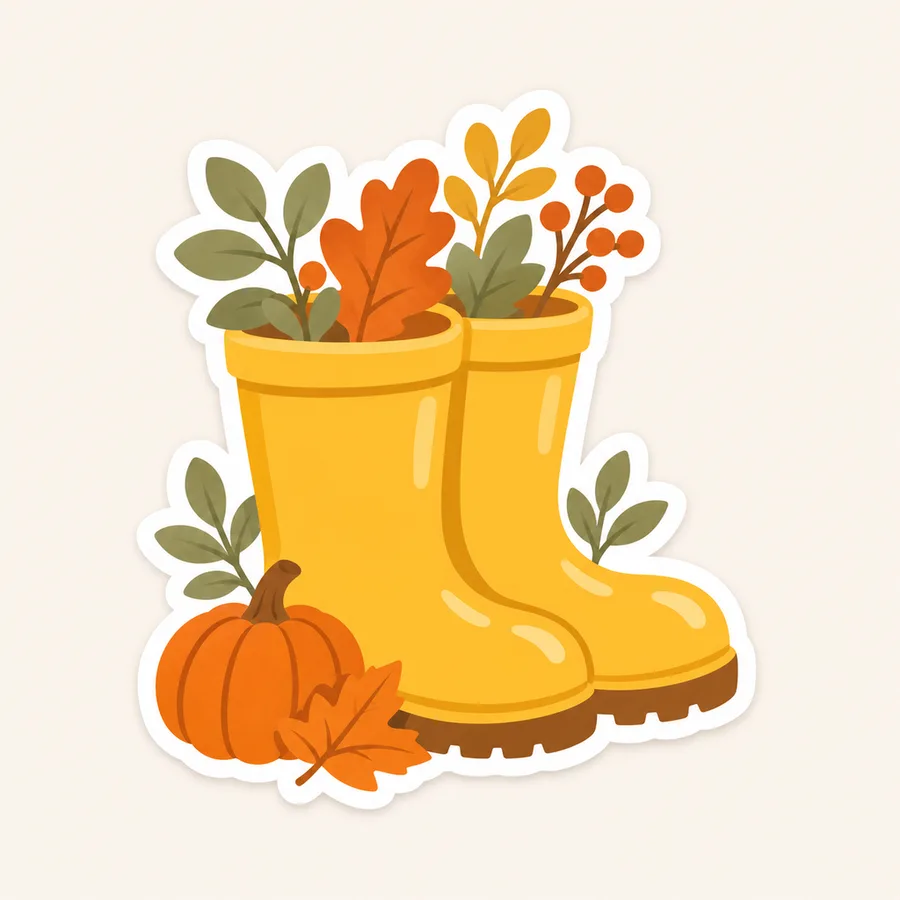
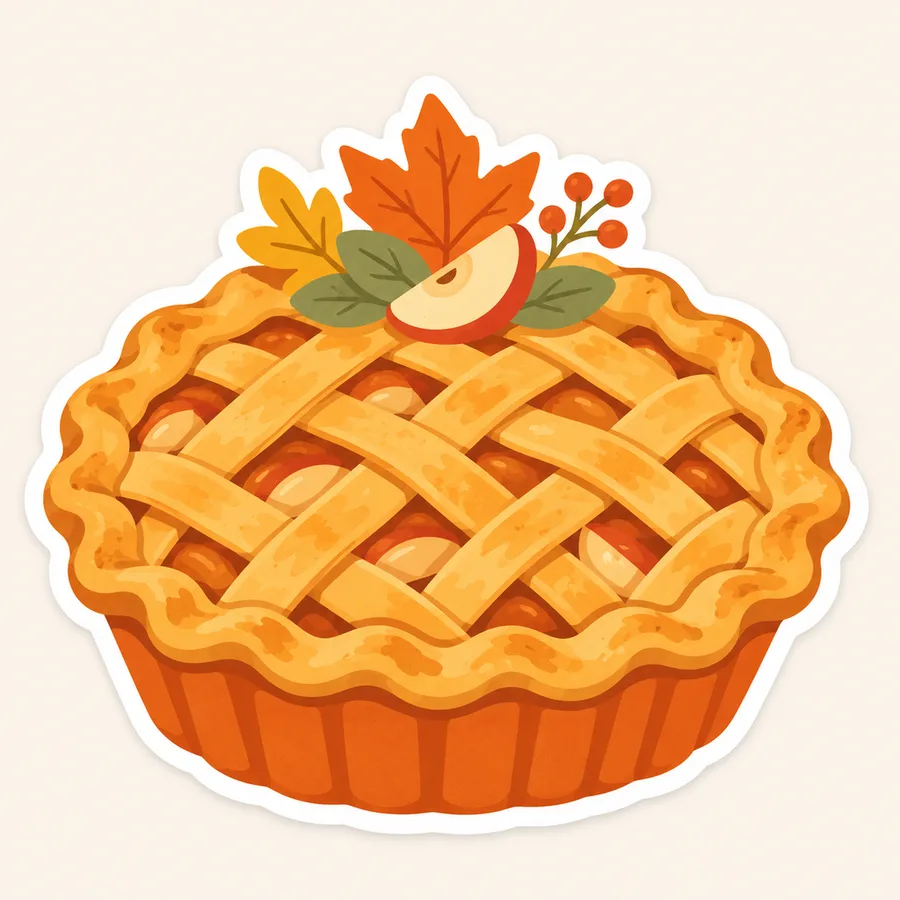
Prompt to copy
Plan 8 autumn planner stickers: pumpkin, cocoa, scarf, hedgehog, books and candle, maple leaf, rain boots and apple pie. Make one centered flat illustration per image. Use pumpkin orange, mustard, sage and cream with a thick white outline and a plain pale background.
How to make your own
Choose the theme and outline style
List distinct motifs and define a compact palette. For planner stickers, decide early how much white margin you want around each object.
Generate one motif per image
Use the Batch Image Generator to turn the list into a sticker set. Share the same line weight, background and viewing scale across the prompts.
Build the sheet in your layout tool
Compare outlines at a small size, clean up edges if needed and place the individual images on a sheet with room between stickers.
What to check in your results
- Keep enough space around each motif for cutting or cropping.
- Check transparency and the required file type in the app or print workflow where the stickers will be used.
Frequently asked questions
How do I make a set of expressions for the same mascot?
Upload the mascot to the Image Variations Generator and list the expressions you want. It keeps the same character and changes only the expression and pose.