
Generate AI Product Mockups from One Design
Put one design on eight products, from a T-shirt and mug to a tote and phone case. Compare the mockups and copy a reusable product-variable prompt.
Open this exampleOne design applied to eight product mockups
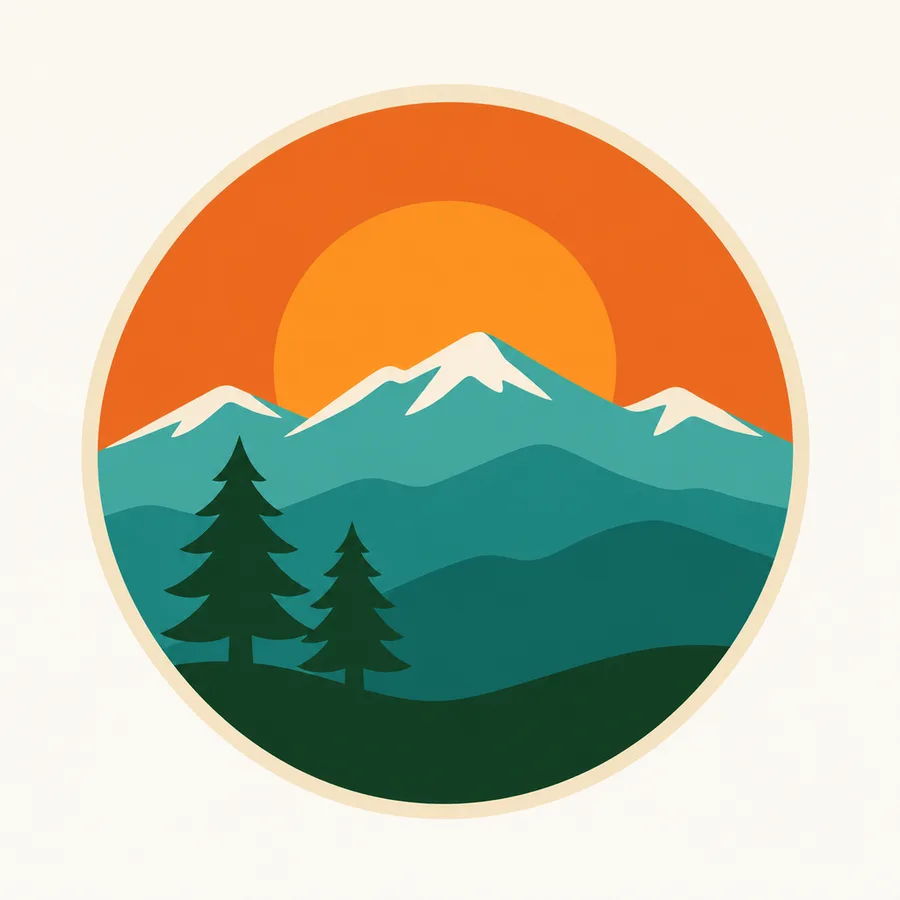
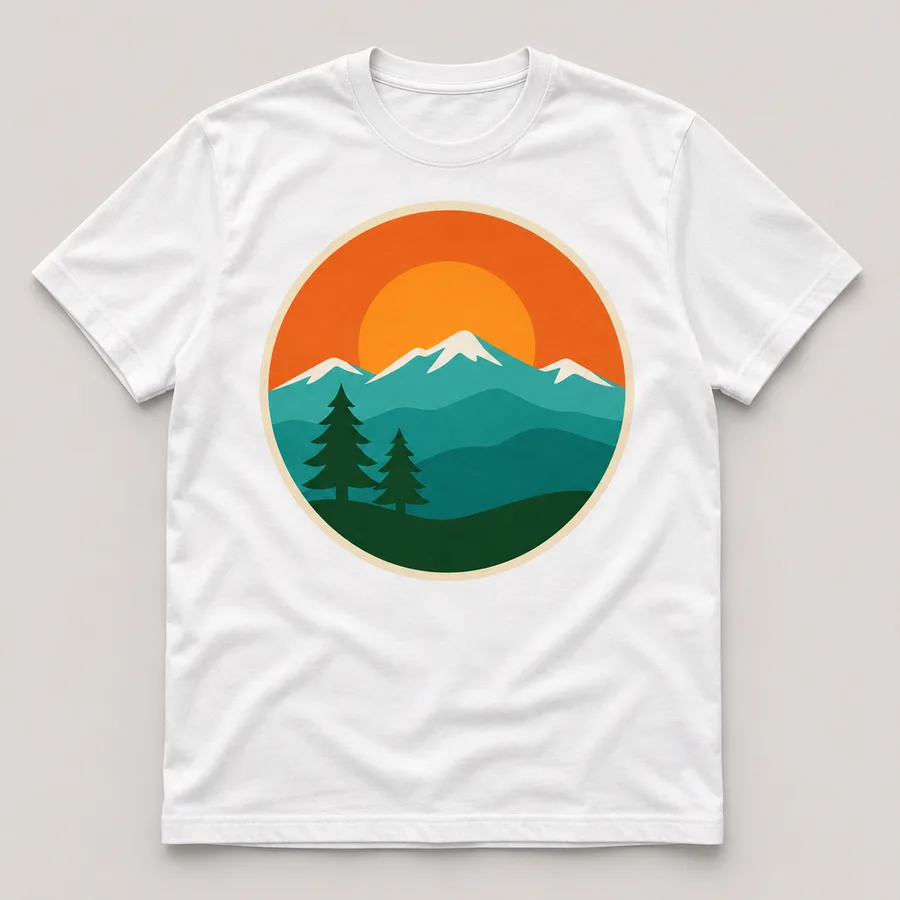
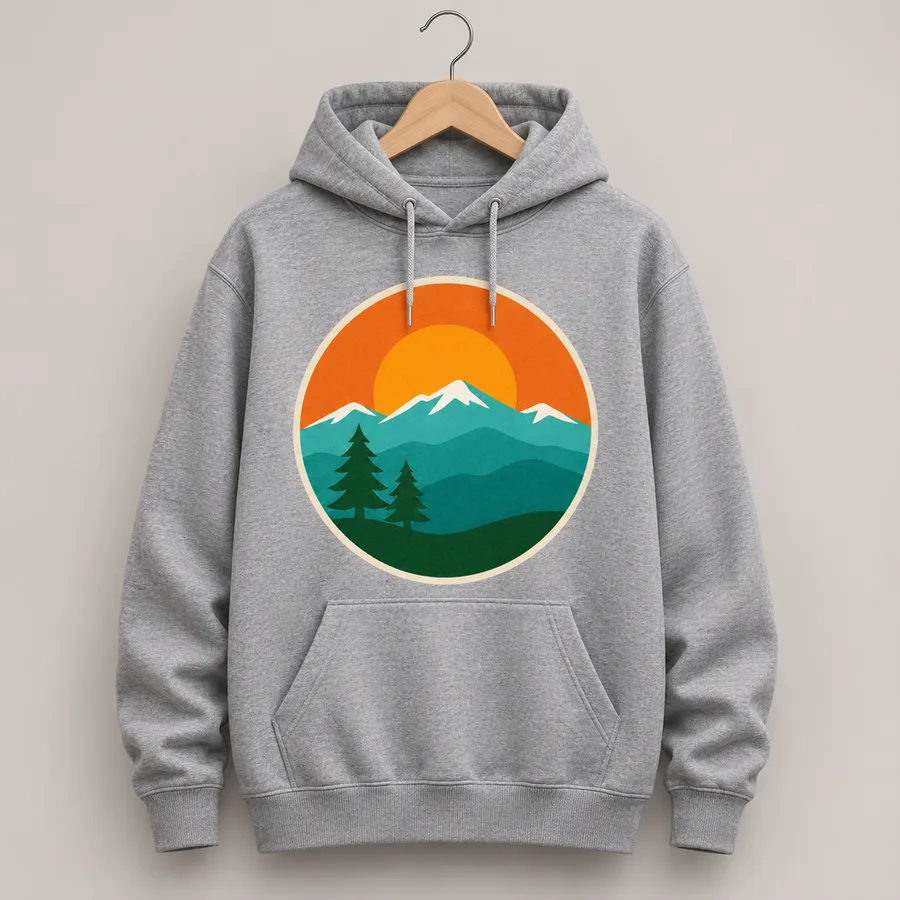
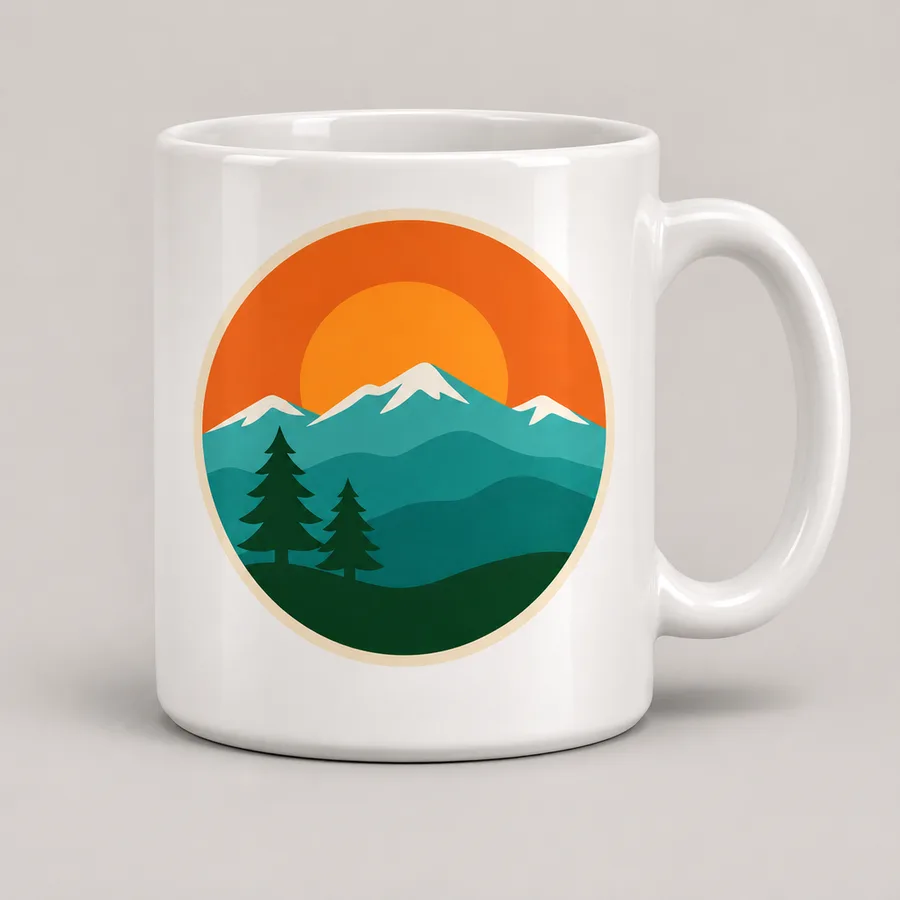
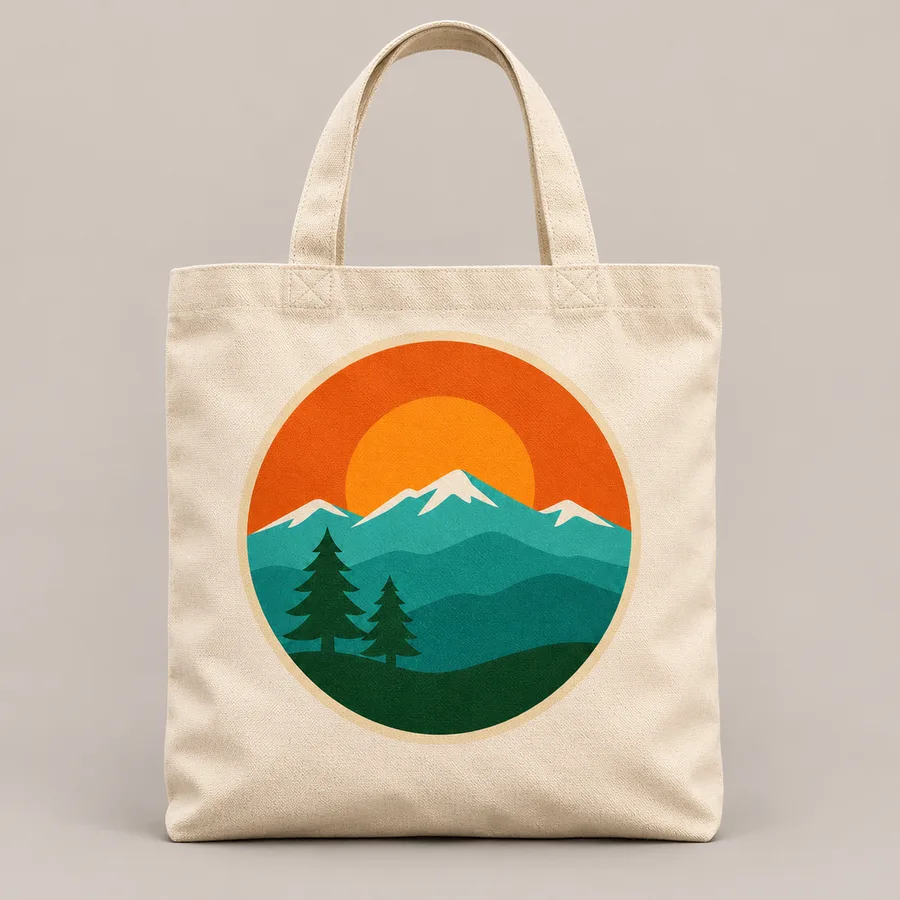
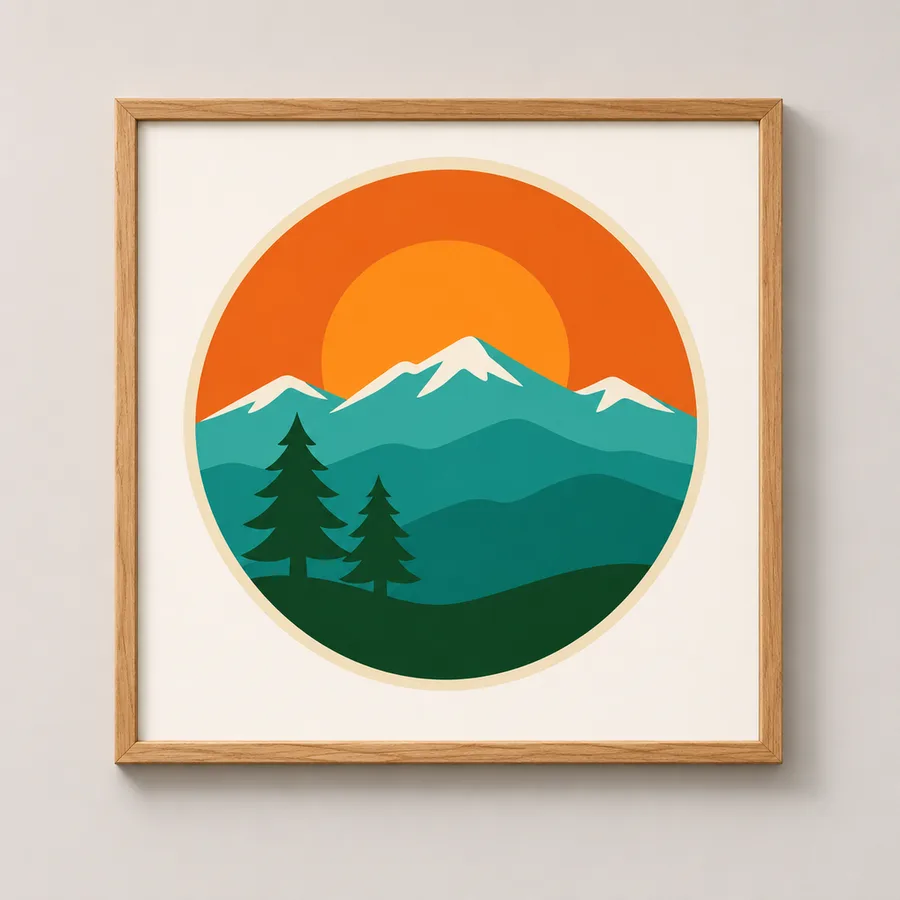
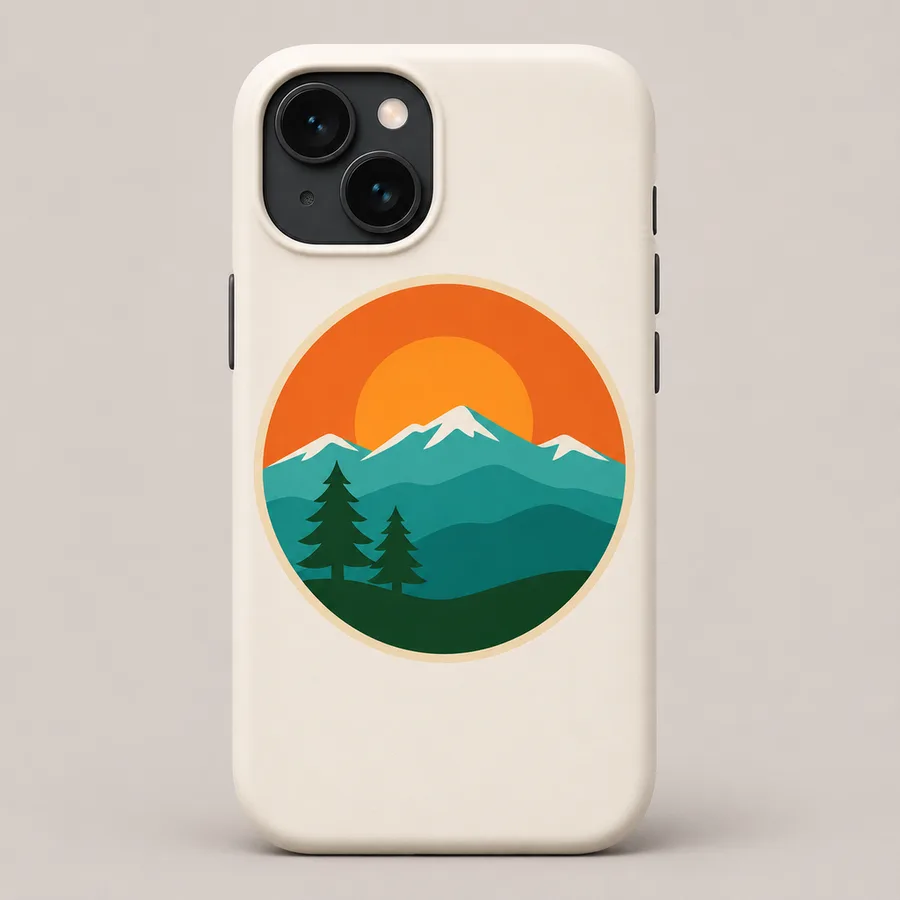
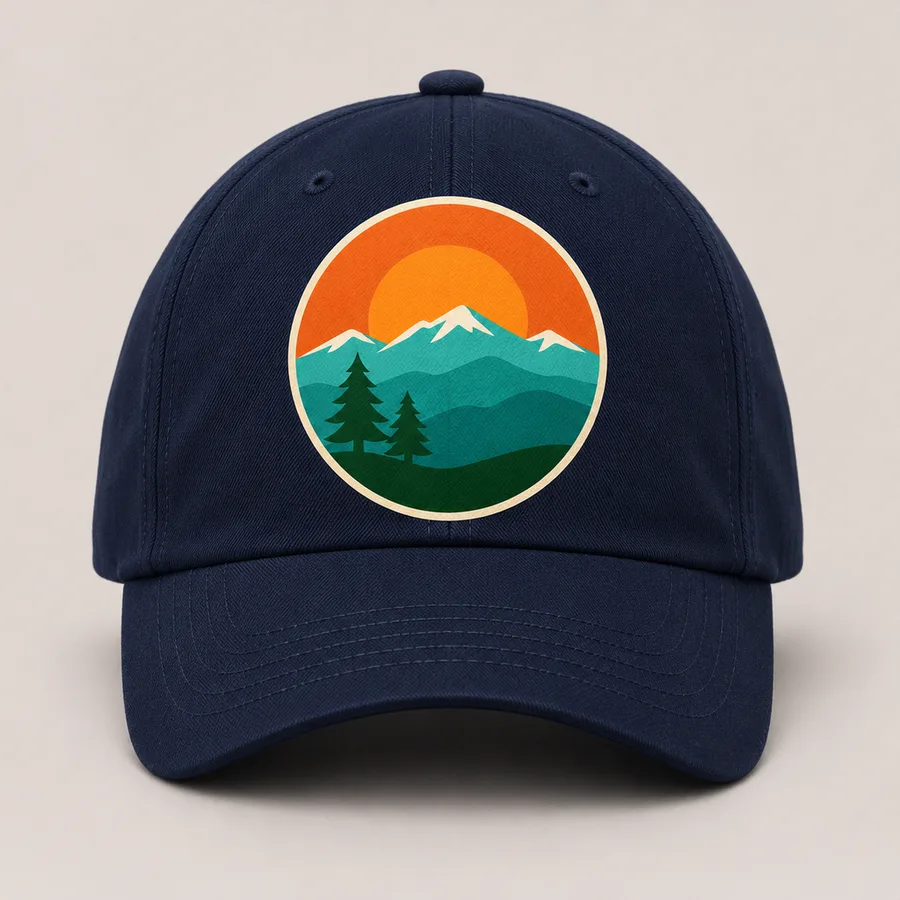
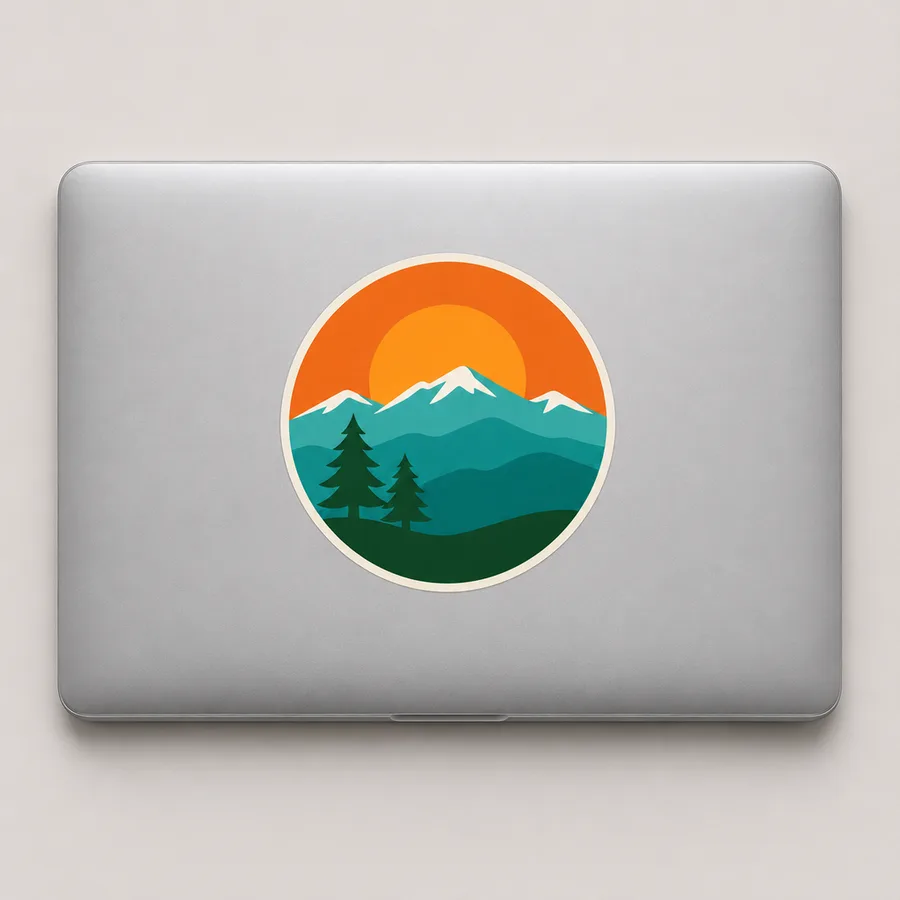
Prompt to copy
Show this artwork printed on {product}. Make a realistic mockup with soft studio light and a neutral background. Preserve the artwork’s shapes, colors, proportions and orientation. Fit it naturally to the printable area without adding any text or graphics.
How to make your own
Upload the clean artwork
Start with a flat design on a simple background. Give lettering and fine marks enough resolution to judge them in the mockups.
List the products one by one
In the Image Variations Generator, ask for one output per carrier. Specify material and placement, such as a ceramic mug centered on its front or a tote with a large centered print.
Compare flat and curved surfaces
Preview one shirt and one rounded object. Check artwork orientation, size and fidelity before generating the remaining products.
What to check in your results
- Look at lettering and small shapes at full size, especially on a mug, cap or other curved surface.
- Use the mockups for visual planning. Apply printer-provided print areas and templates when preparing actual production files.
Frequently asked questions
Do these mockups replace print-ready files?
For printing, export your original artwork to your printer’s template and check bleed, color mode and print area there.
What if the design looks stretched?
Describe the exact print area and tell the model to preserve the artwork’s aspect ratio. Preview that product again before applying the setting broadly.