
Bulk Restore and Colorize Old Photos with AI
Restore a scanned album in batches with prompts for scratches, fading and optional colorization. Compare six damaged prints with their restored examples.
Open this exampleSix damaged prints before and after restoration
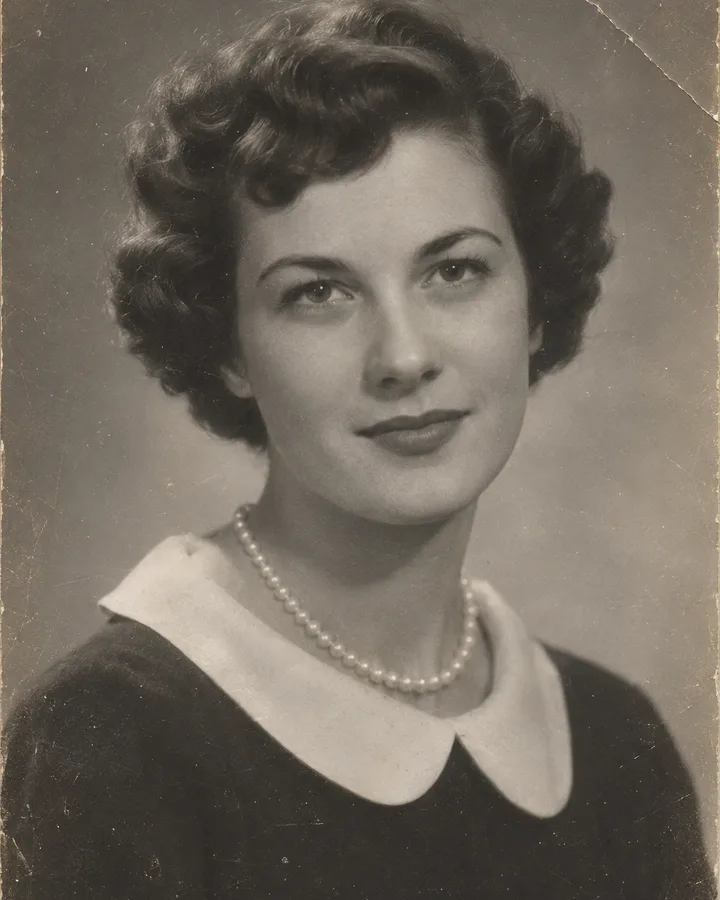
Original
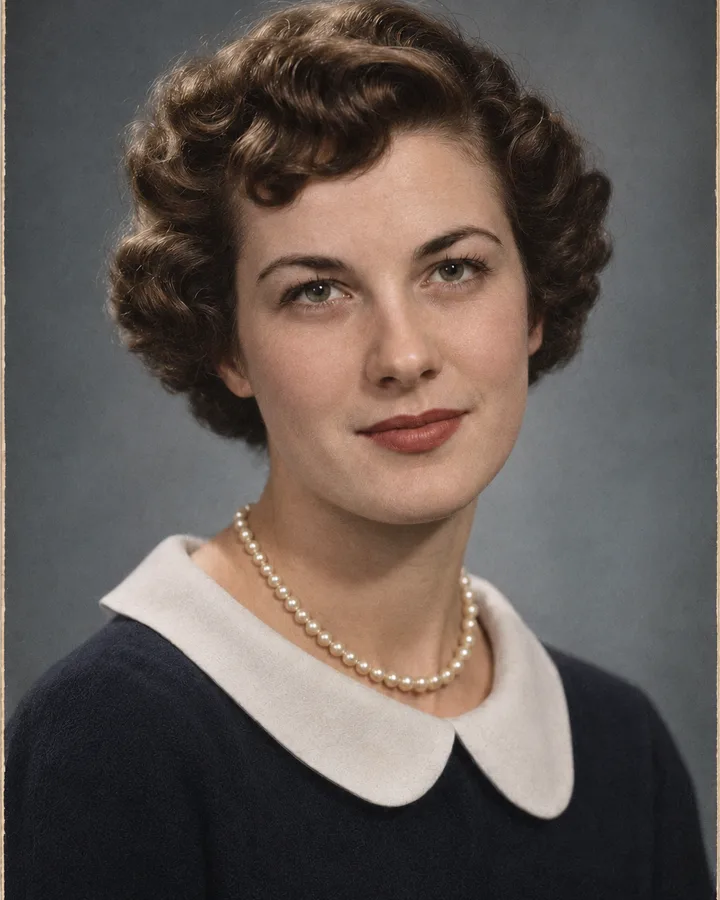
Edited
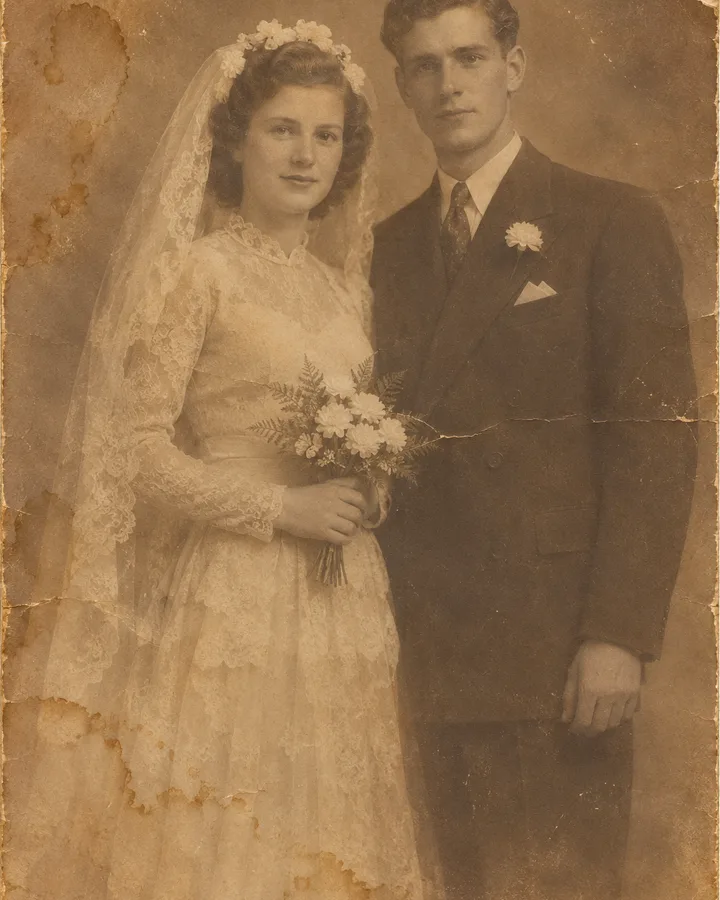
Original
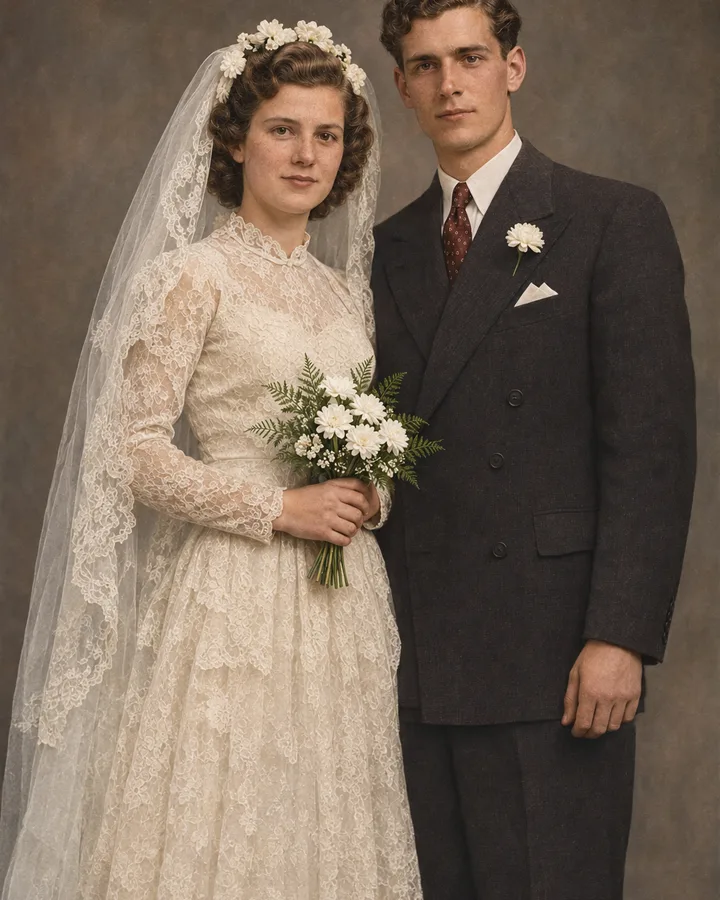
Edited
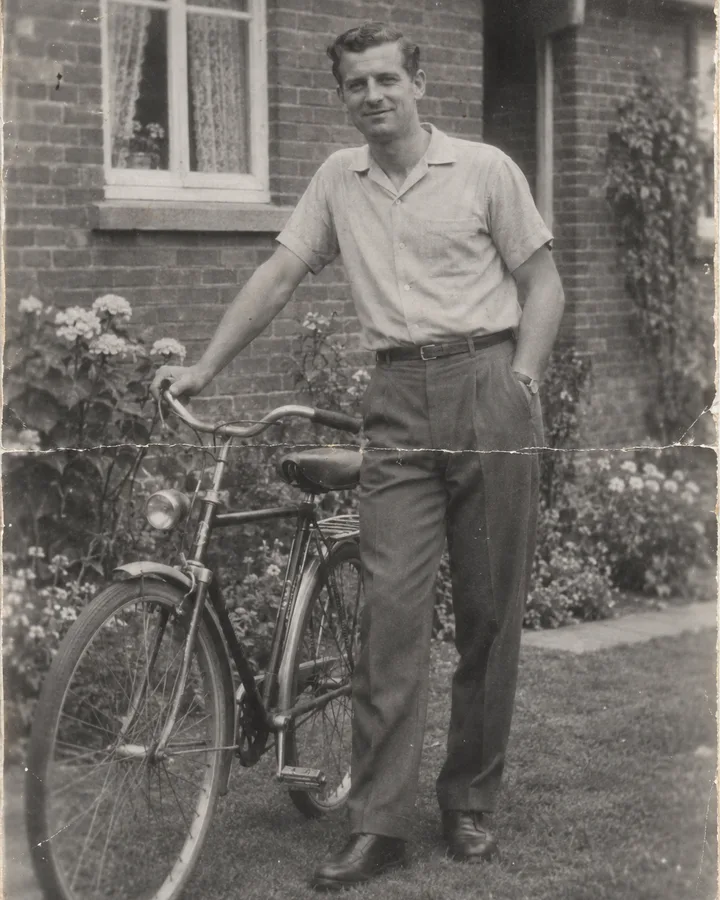
Original
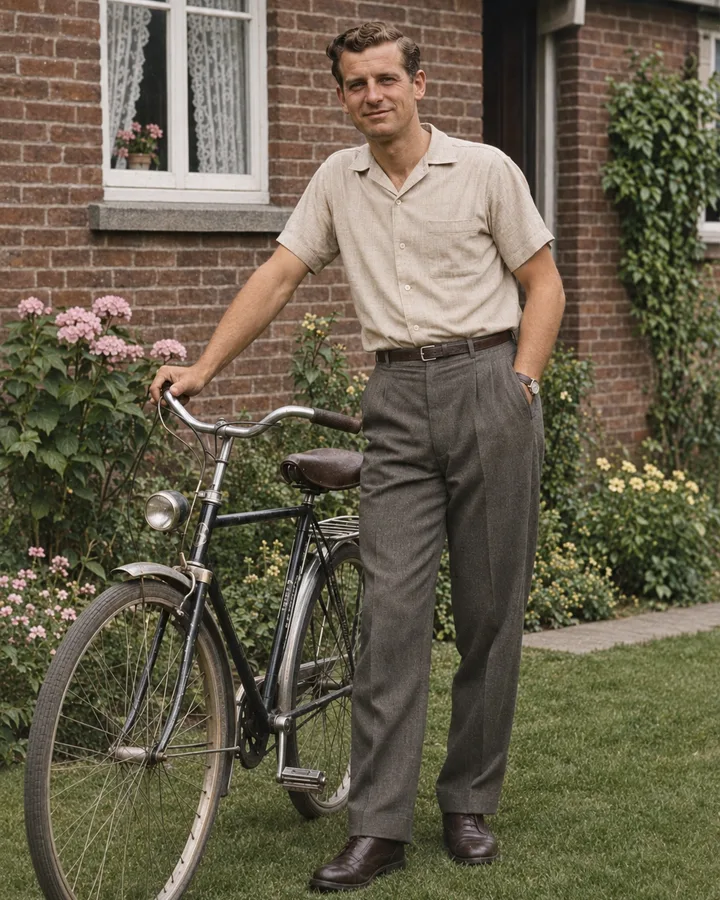
Edited
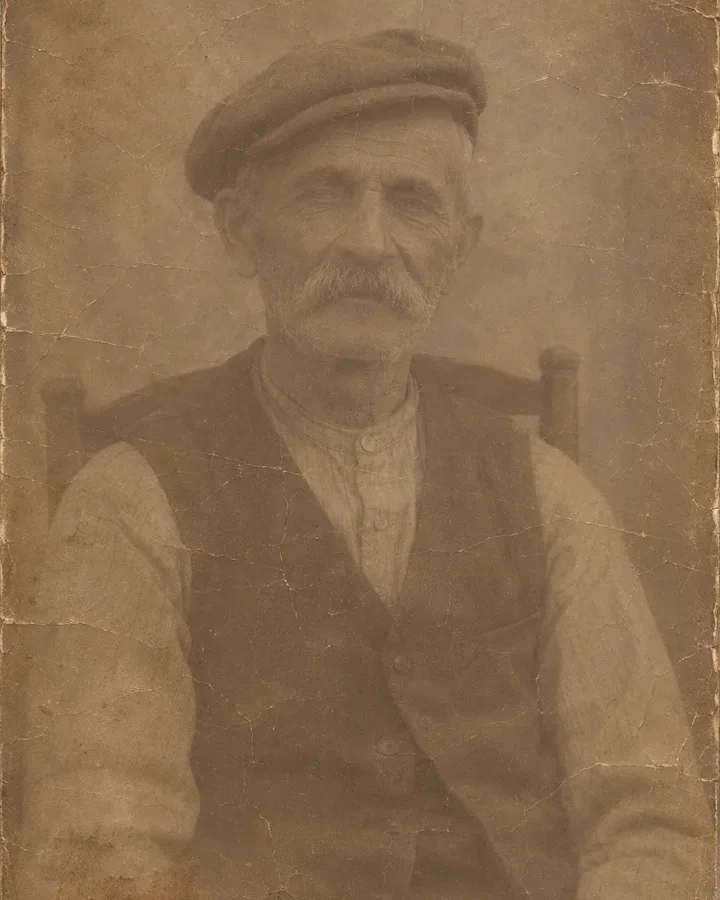
Original
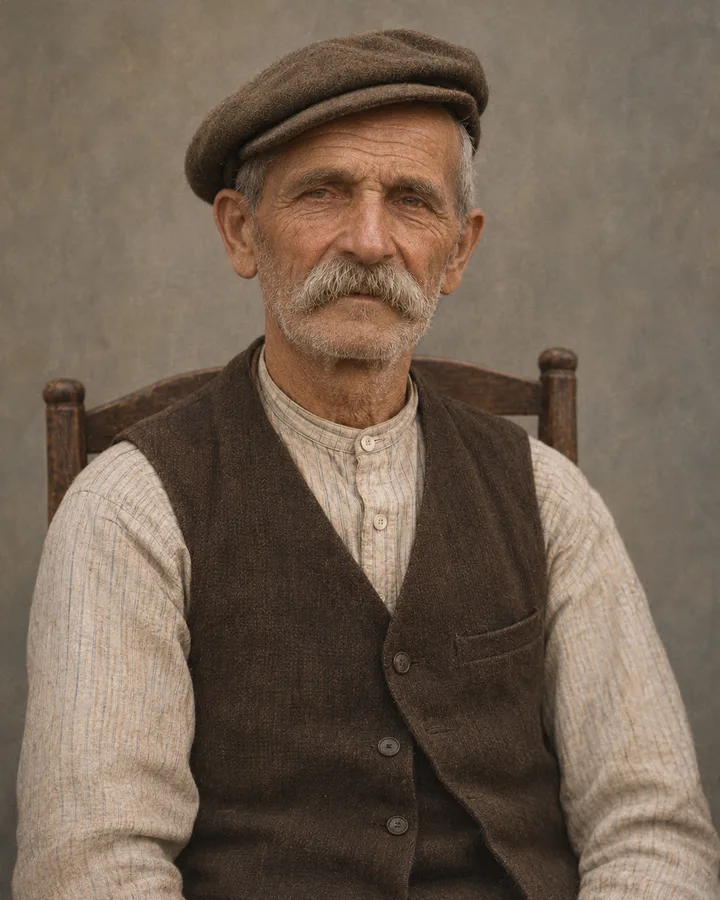
Edited
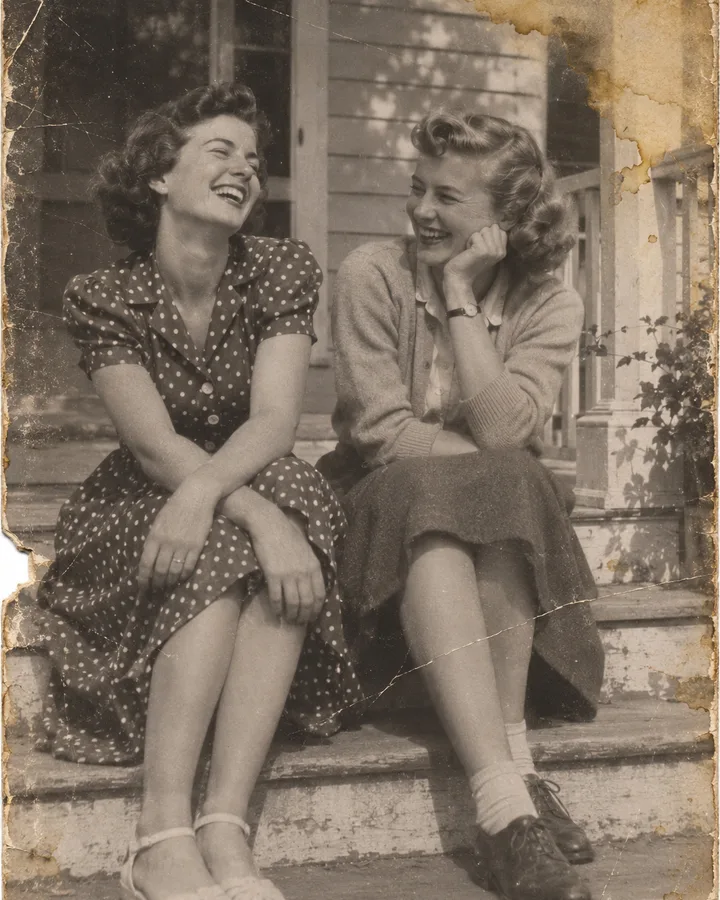
Original
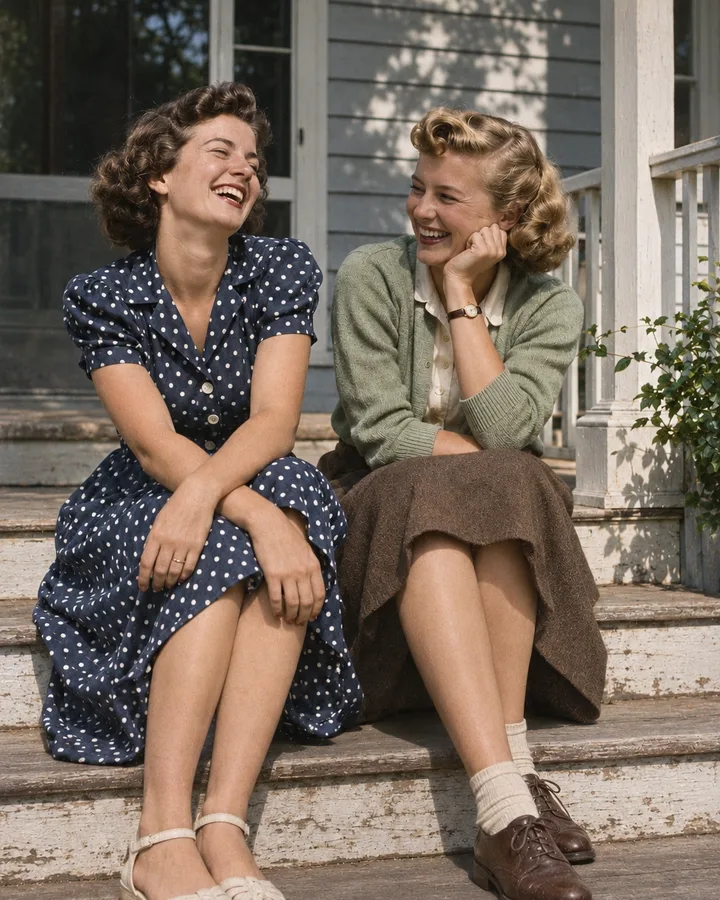
Edited
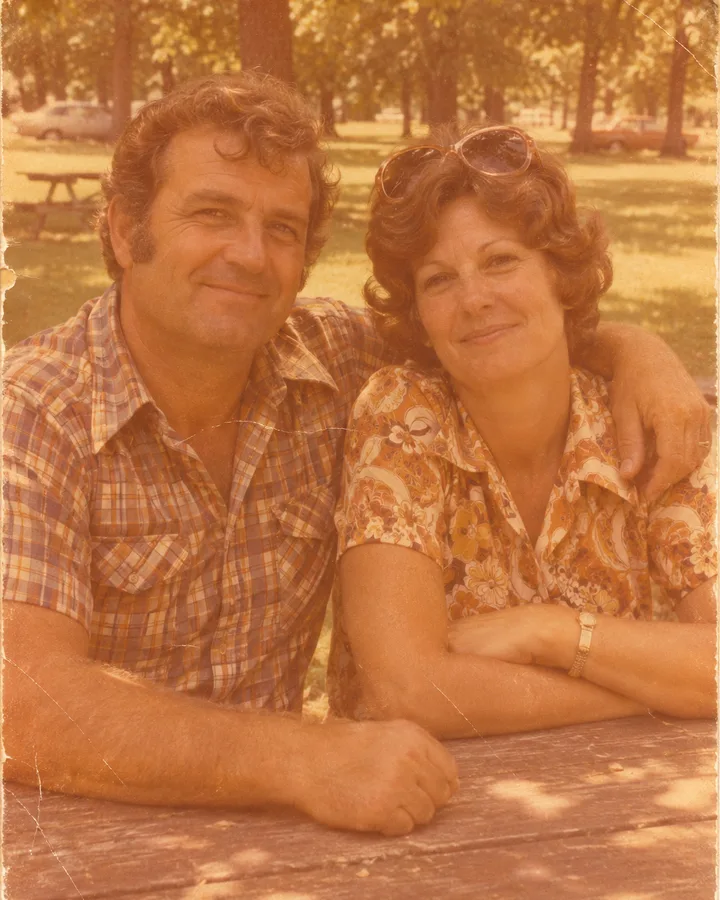
Original
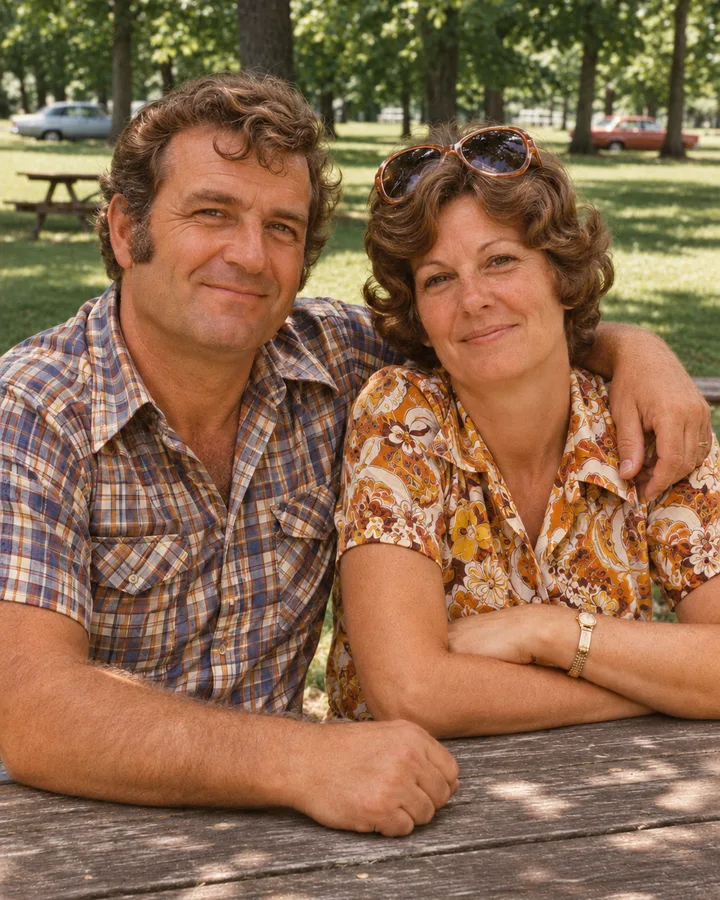
Edited
Prompt to copy
Restore this scanned photograph. Remove dust, scratches and creases, reduce stains, and bring back contrast with gentle sharpening. Preserve the faces, expressions, clothing, poses and framing. For a monochrome source, add restrained, plausible natural colors only if requested.
How to make your own
Scan and sort the originals
Save your original scans separately. Group lightly faded photos, torn photos and monochrome prints to give each group a clearer instruction.
Set the restoration and color treatment
Upload one group to the Bulk Image Editor. If you want to preserve monochrome, say so explicitly. Run a small preview with both light and heavy damage.
Review faces and torn areas at full size
Compare eye shape, mouths and fabric patterns with the scans. Re-run a weak result with narrower instructions or use the original for uncertain details.
What to check in your results
- Treat colors added to black-and-white photos as an interpretation. Use a verified reference when a uniform, garment or location matters.
- Keep the original scans and label edited copies when sharing family or archival material.
Frequently asked questions
Can I repair a batch without colorizing it?
Yes. Ask to restore contrast and remove damage while keeping the original black-and-white or sepia palette.
What if the print is missing part of a face?
The model may infer missing detail. Preserve an original scan and use another authentic photo as a reference if you have one.